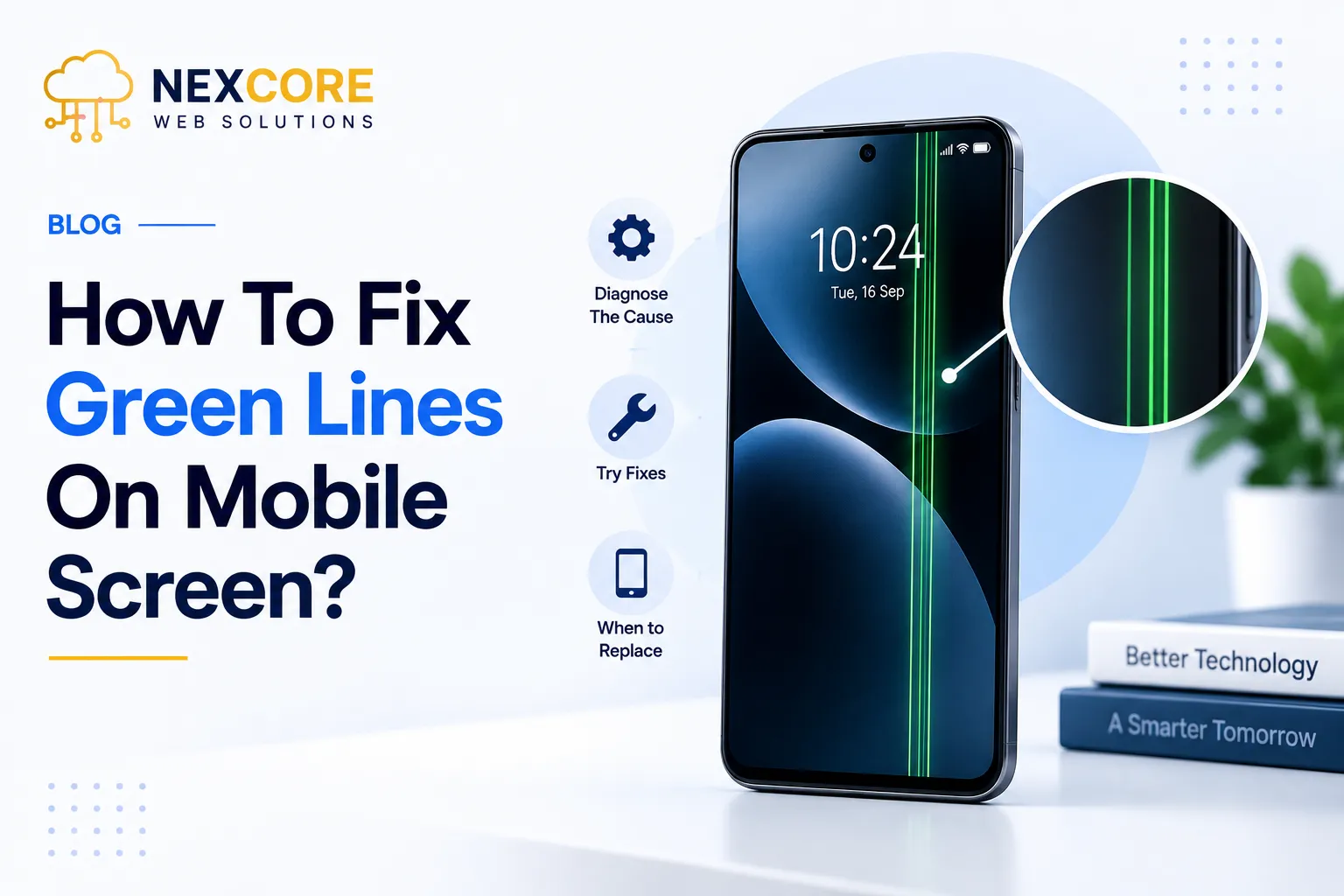
Green lines appearing on a mobile screen can be alarming, especially when they suddenly show up without any visible damage. A vertical or horizontal green line may result from a temporary software issue, display connection problem, overheating, physical impact, or a damaged OLED panel. In some cases, simple troubleshooting can remove the line, while persistent lines often indicate a hardware-related problem. The right solution depends on when the problem started and whether the line appears across all apps, during startup, or only under specific conditions. Before spending money on a screen replacement, it is worth checking a few safe troubleshooting steps. This guide explains the common causes of green lines and practical methods you can try to identify and resolve the problem.
Why Are Green Lines Appearing On A Mobile Screen?
A green line usually indicates a problem involving the display panel or its connection to the phone’s motherboard. OLED and AMOLED screens are particularly associated with this type of issue because individual pixels are controlled electronically and a fault can affect a vertical column of pixels. Software glitches can sometimes create unusual display artifacts, but persistent lines are more commonly associated with hardware. Physical pressure, drops, moisture, excessive heat, or manufacturing-related display faults can also contribute to the problem. Understanding the likely cause helps you avoid unnecessary troubleshooting or repairs.
Restart Your Mobile Phone
Restarting the phone is one of the safest first steps because temporary software or display-driver glitches can occasionally cause visual abnormalities. Press and hold the power button and select the restart option available on your device. After the phone starts again, check whether the green line is still visible on the home screen and inside different applications. If the line disappears after restarting but returns later, a software or temperature-related issue may deserve further investigation. If it remains continuously visible, the problem is more likely to involve the display hardware.
Check For Software And System Updates
Manufacturers sometimes release updates that fix display drivers, system bugs, or compatibility problems. Open your phone’s Settings application and check the Software Update or System Update section. Install an available official update only after ensuring that your battery has sufficient charge and your important data is backed up. After updating, restart the phone and check the display again. However, an update is unlikely to repair a physically damaged OLED panel, so persistent lines should not automatically be considered a software problem.
Start The Phone In Safe Mode
Safe Mode can help determine whether a recently installed application is interfering with the phone’s display behavior. On supported Android devices, Safe Mode temporarily disables third-party applications while keeping core system functions available. If the green line disappears in Safe Mode, review applications installed shortly before the problem appeared and consider removing suspicious or recently updated apps. If the line remains visible even in Safe Mode, third-party software is less likely to be responsible. The exact Safe Mode procedure differs between manufacturers, so use the instructions provided for your particular model.
Check The Screen After A Restart Or Shutdown
Pay attention to when the green line appears because this can provide useful diagnostic information. If the line is visible on the manufacturer’s logo or boot screen before Android or another operating system loads, it strongly suggests that the issue is not caused by a normal third-party application. If the line appears only after the operating system starts, software remains one possible explanation. You can also take a screenshot and view it on another device. If the green line does not appear in the screenshot but remains physically visible on your phone, the display hardware is likely involved.
Remove Pressure And Avoid Overheating
Excessive heat and physical pressure can affect electronic components and display performance. Remove thick cases temporarily if your phone becomes unusually hot during charging or intensive use, and allow the device to cool naturally. Do not place a hot phone in a refrigerator or freezer because rapid temperature changes can create condensation and additional damage. Avoid pressing, bending, tapping, or squeezing the screen in an attempt to remove the line. Such actions can turn a minor connection problem into permanent panel damage.
Check For Physical Or Water Damage
Think about whether the phone was recently dropped, bent, exposed to water, or subjected to pressure inside a pocket or bag. Even when the glass remains completely intact, the internal display layers or connectors can be damaged. Moisture can also interfere with electrical connections and may cause display abnormalities that become worse over time. If the line appeared shortly after an accident or liquid exposure, professional inspection is safer than repeatedly restarting the device. Do not open the phone yourself if it is still under warranty or if you are unfamiliar with smartphone hardware.
When A Screen Replacement Is Required
If a green line remains permanently visible after restarting, updating, and checking software-related causes, the display panel may require professional repair or replacement. This is particularly likely when the line appears everywhere, including the lock screen, boot logo, and recovery interface. OLED panel damage cannot normally be repaired through settings or applications because the affected display components are physical hardware. Before approving a repair, ask the service center to diagnose the phone and provide the expected cost. For expensive phones, compare the official repair estimate with the device’s current value before making a decision.
Backup Your Data Before Repair
If you suspect a hardware problem, back up important photos, contacts, documents, and other data before handing the phone to a repair center. Use the manufacturer’s cloud backup service, Google or Apple backup options, or transfer important files to a computer. A screen replacement normally does not require deleting personal data, but repairs involving the motherboard or other components can sometimes create additional risks. Keep your passwords and authentication methods accessible so you can sign back into essential accounts if required. A complete backup gives you greater protection if the repair process takes an unexpected turn.
Conclusion
Green lines on a mobile screen can come from temporary software glitches, overheating, physical damage, display connector problems, or a failing OLED or AMOLED panel. Start with safe steps such as restarting the phone, installing official updates, checking Safe Mode, and observing whether the line appears during startup. Avoid pressing the screen, applying heat, bending the device, or using unverified repair tricks because these actions can cause additional damage. If the line remains visible across the system or appeared after a drop or liquid exposure, professional inspection is usually the appropriate next step. Back up your data before any repair and ask for a clear diagnosis and cost estimate. Taking these precautions can help you identify the cause without risking further damage.
FAQs
Can a green line on a phone screen be fixed without replacing the screen?
Sometimes, but it depends on the cause. If the line is caused by a temporary software glitch, restarting, updating the operating system, or removing a problematic application may resolve it. However, a permanent green line that appears across the boot screen or every application usually indicates a display hardware problem. In that situation, software troubleshooting is unlikely to permanently remove the line.
Why does my phone have a green line after an update?
A green line appearing after an update does not necessarily mean the update physically damaged the screen. The timing may indicate a software display issue, but it can also coincide with an existing hardware weakness becoming noticeable. Restart the phone and check whether the line appears during startup. If it remains visible outside the operating system, professional display diagnosis is more appropriate.
Can pressing the screen remove a green line?
You should not press, squeeze, bend, or tap the screen to try removing a green line. A damaged display connector or panel may temporarily change behavior when pressure is applied, but this is not a safe repair method. Pressure can damage OLED layers, connectors, or the glass assembly further. If the line is caused by hardware damage, have the phone inspected by a qualified technician instead.
How do I know whether the green line is a software or hardware problem?
A useful check is to observe the screen during startup and compare what you see with screenshots. If the line appears on the manufacturer’s boot logo, it is unlikely to be caused by a normal application. You can also take a screenshot and view it on another device. If the line is absent from the screenshot but visible on the physical display, the screen hardware is likely involved.
Is a green line on an AMOLED display permanent?
A green line can be permanent when individual display components, panel circuitry, or internal connections have been damaged. Restarting or changing display settings generally cannot repair physically damaged pixels or panel circuitry. However, not every display line is necessarily permanent, because temporary software glitches can produce visual artifacts. If the line consistently remains after basic troubleshooting, professional diagnosis is recommended.